Turn LinkedIn post engagement into warm accounts
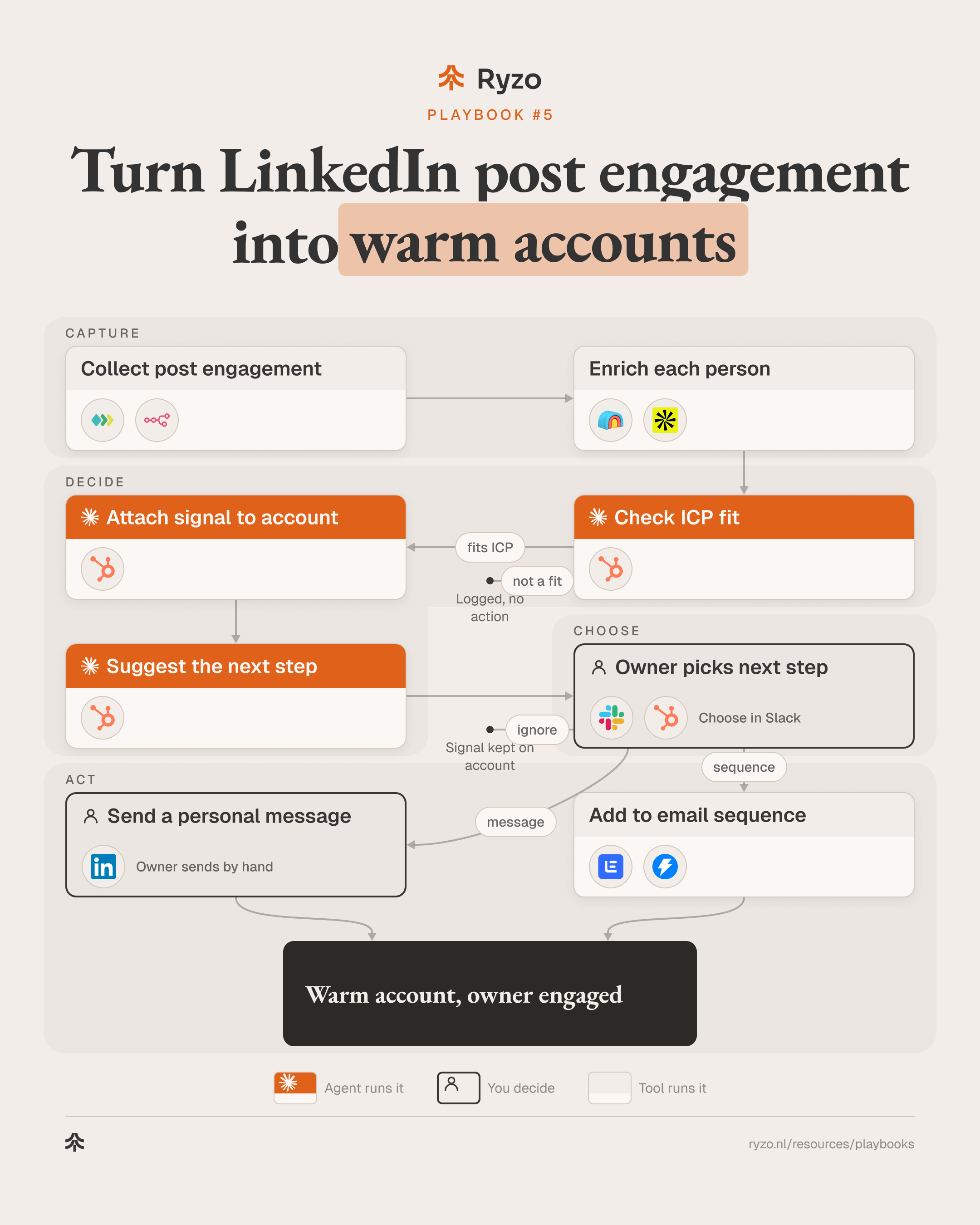
When people like or comment on your team's LinkedIn posts, Claude Code agents enrich them, check the company against your ICP and attach the engagement to the account as a signal. They suggest a next step and draft a message where one fits. The account owner chooses: a personal message, a sequence, or nothing.
- Time to set up
- 1 week
- Difficulty
- Intermediate
- Steps
- 8
- For
- B2B SaaS and fintech teams whose founders or sellers post on LinkedIn and want to know which engagement comes from accounts worth a conversation.
Tools you need

Before you start
- Team members who post on LinkedIn, with their accounts connected through Unipile.
- A written ICP and a CRM (HubSpot) where signals can be logged on the account.
- Enrichment (Clay or Apollo), Claude Code, and a Slack channel or DM for the owner's choice.
The strategy
A like or a comment on your team's post is a small, public signal that someone from an account is paying attention to the topic you sell into. On its own it means little. Next to a fit with your ICP, an open deal, or other people from the same account engaging, it is a good reason to start a conversation that would otherwise be cold.
Agents fit because the work is matching and sorting at volume. Most engagement comes from colleagues, peers, recruiters and people outside your market. An agent can resolve each person to a company, drop what is not a fit, roll several engagers up to one account, and read what someone actually wrote in a comment. It then suggests the next step with a reason, so the owner sees a short list of accounts instead of a long list of names.
The owner decides who hears from you, and how. For each account they choose a personal message, a sequence, or ignore. A message goes out by hand from the owner's own LinkedIn. A sequence starts by email. There are no automated connection requests and no messages that open with "I saw you liked my post": the post is context for the owner, not the opening line.
Step by step
- 1
Collect post engagement
A scheduled run collects likes and comments on your team's recent posts, with the post topic and the comment text.
- Pull reactions and comments per post: Unipile
- Store engager, post, topic and comment text: n8n
- Drop people already handled in the last run: n8n
ToolsYou end up with: List of engagers with post and comment
- 2
Enrich each person
Each engager gets a current company, role, seniority and company size from your enrichment tools.
- Find current company and role: Clay, Apollo
- Add company size, industry and region: Clay, Apollo
- Find a work email where your rules allow it: Clay, Apollo
ToolsYou end up with: Enriched engagers
- 3
Check ICP fit
An agent checks each company and role against your ICP and sets aside colleagues, recruiters, competitors and partners.
- Score company fit and buying influence of the role: Claude Code
- Exclude colleagues, recruiters, competitors and partners: Claude Code
- Flag existing customers for their account owner: Claude Code, HubSpot
ToolsYou end up with: Engagers that fit, with reasons
- 4
Attach signal to account
An agent logs the engagement on the account as a signal and rolls several engagers up to one account.
- Match or propose the account and contact: Claude Code, HubSpot
- Log post, topic and comment as a signal: HubSpot
- Group engagers from the same account: Claude Code
Tools - 5
Suggest the next step
An agent suggests message, sequence or ignore for each account with one line of reason, and drafts the message if one fits.
- Read open deals, owner and last touch: HubSpot
- Suggest message, sequence or ignore with a reason: Claude Code
- Draft a personal message on the topic, not the like: Claude Code
Tools - 6
Owner picks next step
The account owner gets the list in Slack and chooses message, sequence or ignore for each account.
- Post accounts, signals and drafts for the owner: Slack
- Choose message, sequence or ignore: Slack, HubSpot
- Nothing is sent or enrolled without a choice: Slack
Tools
- 7
Send a personal message
The owner edits the draft and sends it by hand from their own LinkedIn. No automated connection requests.
- Edit and send the message by hand: Sales Navigator
- Connect first only if the owner chooses to: Sales Navigator
- Log the touch on the account: Sales Navigator
ToolsYou end up with: Personal message sent by the owner
- 8
Add to email sequence
The contact is enrolled in the sequence the owner chose, with the post topic as context. Email only.
- Enrol in the chosen sequence: lemlist, Instantly
- Use the topic as context, not the like: lemlist, Instantly
- Stop on reply and hand the reply to the owner: lemlist, Instantly
ToolsYou end up with: Contact in an email sequence
How to know it works
- Share of engagers that fit your ICP, by post topic.
- Accounts with more than one engager, and how often that happens per topic.
- Owner choices over time: message, sequence, ignore.
- Replies and meetings that trace back to an engagement signal in the CRM.
Mistakes to avoid
- Opening with "I saw you liked my post". It reads as surveillance. Use the topic, not the click.
- Automating connection requests or LinkedIn messages. It puts the owner's account at risk and turns a warm signal into spam.
- Treating every like as intent. One like from someone outside your ICP is noise; weigh fit and repeat engagement from the same account.
- Missing existing customers and open deals. Engagement from a customer belongs with their account owner, not in a new sequence.
- Collecting more personal data than you need. Store the signal on the account, check your legal basis for processing, and respect do-not-contact flags.