Cut wasted search spend every week
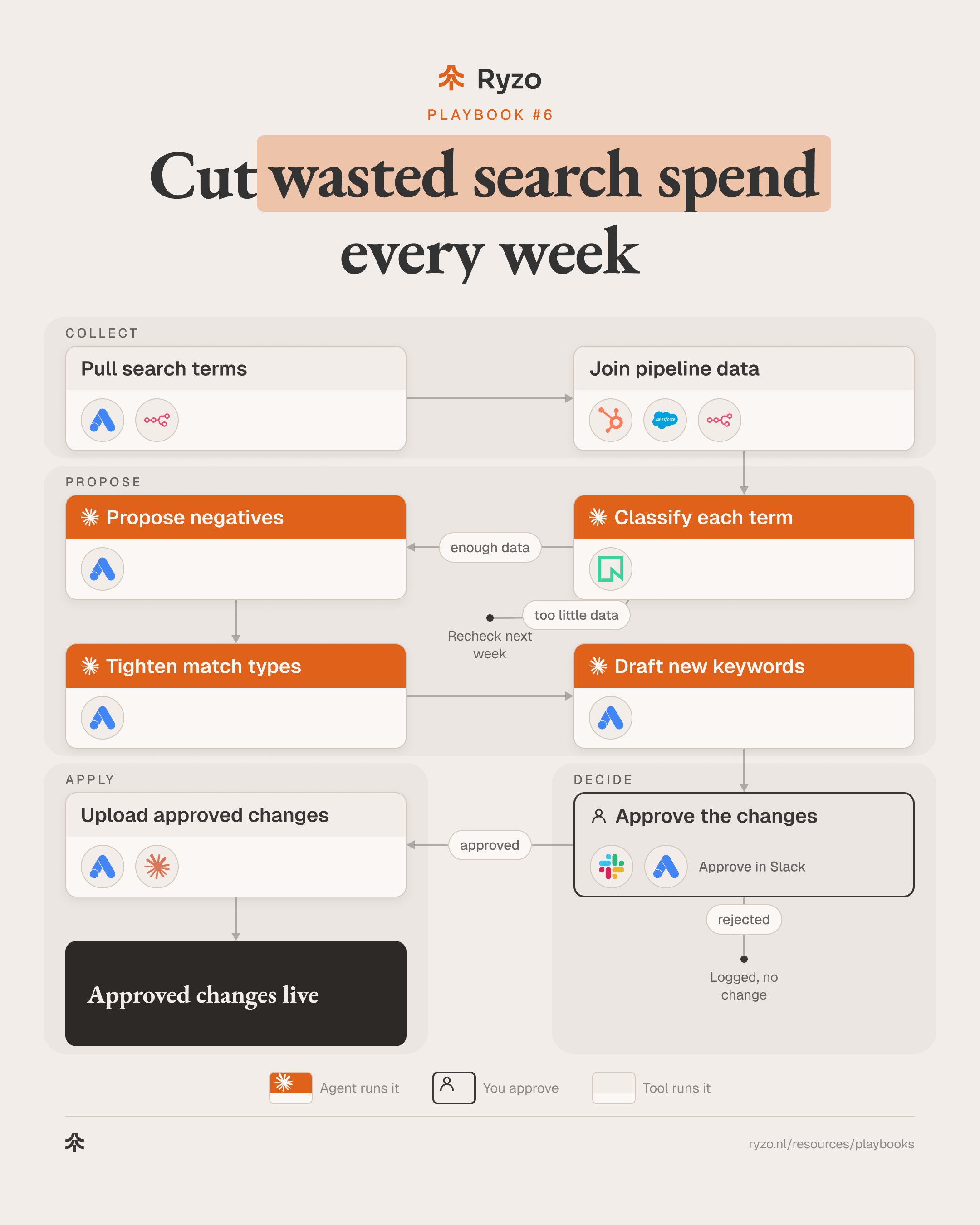
Every week, the search terms report is pulled from Google Ads and joined to your CRM. An agent classifies each term by intent and fit, proposes negative keywords and tighter match types, and drafts new keyword ideas from terms that convert. A person approves every change before it is uploaded through a Google Ads Editor file or a script; nothing is applied on its own.
- Time to set up
- 1 week
- Difficulty
- Intermediate
- Steps
- 8
- For
- Paid search managers, growth marketers and founders at B2B software and fintech companies who run Google Ads Search and want the weekly search-term review done thoroughly without reading every row by hand.
Tools you need
Before you start
- A Google Ads account with Search campaigns, conversion tracking that works, and access to the search terms report (API, a script export or a scheduled CSV).
- A written description of what you sell, who you sell to, and what you don't sell, so the agent can judge fit.
- Google Ads Editor (or a script you control) to upload approved changes, and ideally click IDs stored in the CRM so terms can be matched to pipeline.
The strategy
In B2B search, a click that fills in a form is not the same as a click that becomes pipeline. Broad and phrase match keep finding new queries: job seekers, students, people looking for a login page, people looking for a free tool, people looking for a different product with a similar name. Each of them costs money, and in a weekly report they hide between the queries that matter.
Agents fit this work because it is reading thousands of short strings against a clear description of your business. An agent sorts every term by intent and fit, explains its reason, proposes the right negative at the right level, and checks that the negative does not block a term that converts. The same pass finds converting terms that are not yet keywords.
The account stays in a person's hands. Every proposed negative, match-type change and new keyword lands in a review table with its cost, conversions and the terms it would block. The reviewer approves, edits or rejects each line. Only approved lines are written to an Editor file or a script input, and new keywords go in paused.
Step by step
- 1
Pull search terms
A weekly run pulls the search terms report with cost, clicks, conversions, campaign, ad group and the keyword that matched.
- Pull the last week and a longer lookback for low-volume terms: Google Ads
- Pull current keywords and negative keyword lists: Google Ads
- Run the export on a schedule: n8n
ToolsYou end up with: Search terms report with matched keywords and current negatives
- 2
Join pipeline data
Each click is matched to the CRM through its click ID, so every term shows whether it led to a qualified deal, not only a form fill.
- Read click IDs and deal stages from the CRM: HubSpot, Salesforce
- Join deal outcomes to search terms: n8n
- Mark form fills that never became pipeline: HubSpot, Salesforce
Tools - 3
Classify each term
An agent classifies every new term by intent and fit with a short reason, and sets aside terms with too little data.
- Skip terms already reviewed in earlier weeks: Claude Code, Neon
- Classify intent: buyer, researcher, job seeker, support, competitor, wrong product: Claude Code
- Score fit against what you sell and who you sell to: Claude Code
ToolsYou end up with: Every term with intent, fit and reason
- 4
Propose negatives
An agent proposes negative keywords at the right level and match type, and checks that none blocks a term that converts.
- Propose exact negatives for one-off terms and phrase negatives for recurring words: Claude Code
- Choose the level: shared list, campaign or ad group: Claude Code
- List every term each negative would block and flag conflicts: Claude Code, Google Ads
ToolsYou end up with: Proposed negatives with the terms they block
- 5
Tighten match types
An agent flags keywords whose matches drift away from your offer and proposes a tighter match type or a split.
- Find keywords with most spend on no-fit matches: Claude Code
- Propose a tighter match type or a separate ad group: Claude Code, Google Ads
- Show the no-fit matches behind each proposal: Claude Code
Tools - 6
Draft new keywords
An agent drafts new keyword ideas from terms that converted or became pipeline and are not yet keywords.
- Find converting terms that are not keywords yet: Claude Code
- Propose match type and target ad group: Claude Code, Google Ads
- Mark new keywords to be added paused: Claude Code
Tools - 7
Approve the changes
A person reviews every proposed change with its cost, conversions and blocked terms, and approves, edits or rejects each line.
- Get the review table and summary: Slack
- Approve, edit or reject each line: Slack
- Check conflicts flagged by the agent: Google Ads
Tools
- 8
Upload approved changes
Only approved lines go into a Google Ads Editor file or a script input. The reviewer checks the import before posting it to the account.
- Build the Editor import from approved lines only: Claude Code
- Import, review and post in Editor: Google Ads Editor
- Or apply through your own script, preview first: Google Ads
ToolsYou end up with: Approved changes live in the account, rejected terms logged
How to know it works
- Share of weekly spend on terms classified as no fit, week over week.
- Proposed changes approved, edited and rejected, by type (negative, match type, new keyword).
- Conflicts caught: negatives that would have blocked a converting term.
- Spend and pipeline from keywords added through this process.
Mistakes to avoid
- Judging terms on form fills alone. In B2B, a cheap conversion that never becomes pipeline is still waste; join CRM outcomes before you cut.
- Broad negatives that block buyers. A phrase negative on a common word can remove good traffic; always check what each negative would block.
- Acting on one click. Low-volume terms need a longer lookback before they are negated.
- Re-reviewing the same terms. Keep a history of reviewed terms so the reviewer sees only what is new.
- Auto-applying changes. A negative is easy to add and hard to notice once it blocks something; keep the approval step, every week.